01
Keep layouts distinct
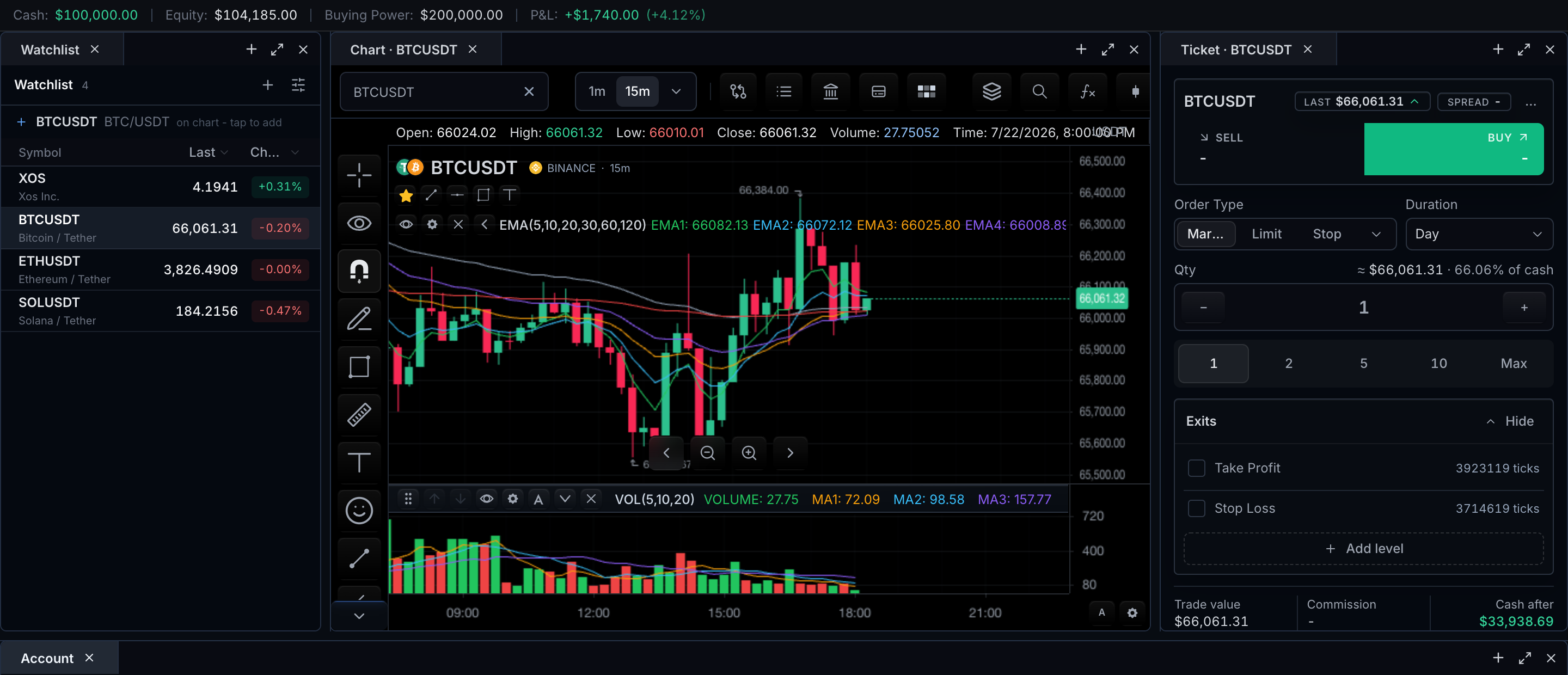
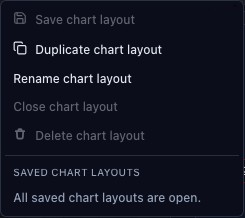
Create and switch layouts for different research tasks. A layout carries its chart configuration rather than replacing every view with the latest selected symbol.
02
Choose what the panes share
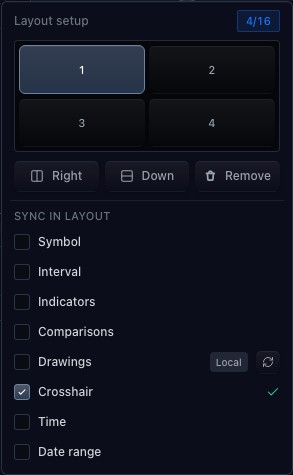
Symbol, interval, crosshair and drawing synchronization are explicit controls. Users can compare independent panes or share selected interactions where the host enables them.
03
Connect saved state to your storage
The host supplies persistence for tabs and layouts. User identity and storage availability determine where a workspace is saved and restored; browser presentation alone is not cross-device storage.
How to use workspace tabs
- Open the workspace demonstration.
- Inspect the layout and synchronization controls.
- Create or switch a workspace tab.
- Change a pane configuration and use the available save controls.
Data behind this view
Requires chart data and a host storage integration for durable saved workspaces.
Common questions
Can panes use different intervals?
Yes. Each pane has its own interval unless interval synchronization is enabled.
Are saved layouts automatically shared across devices?
That depends on the storage adapter and user identity supplied by your application.