Build a Multi-Chart Workspace
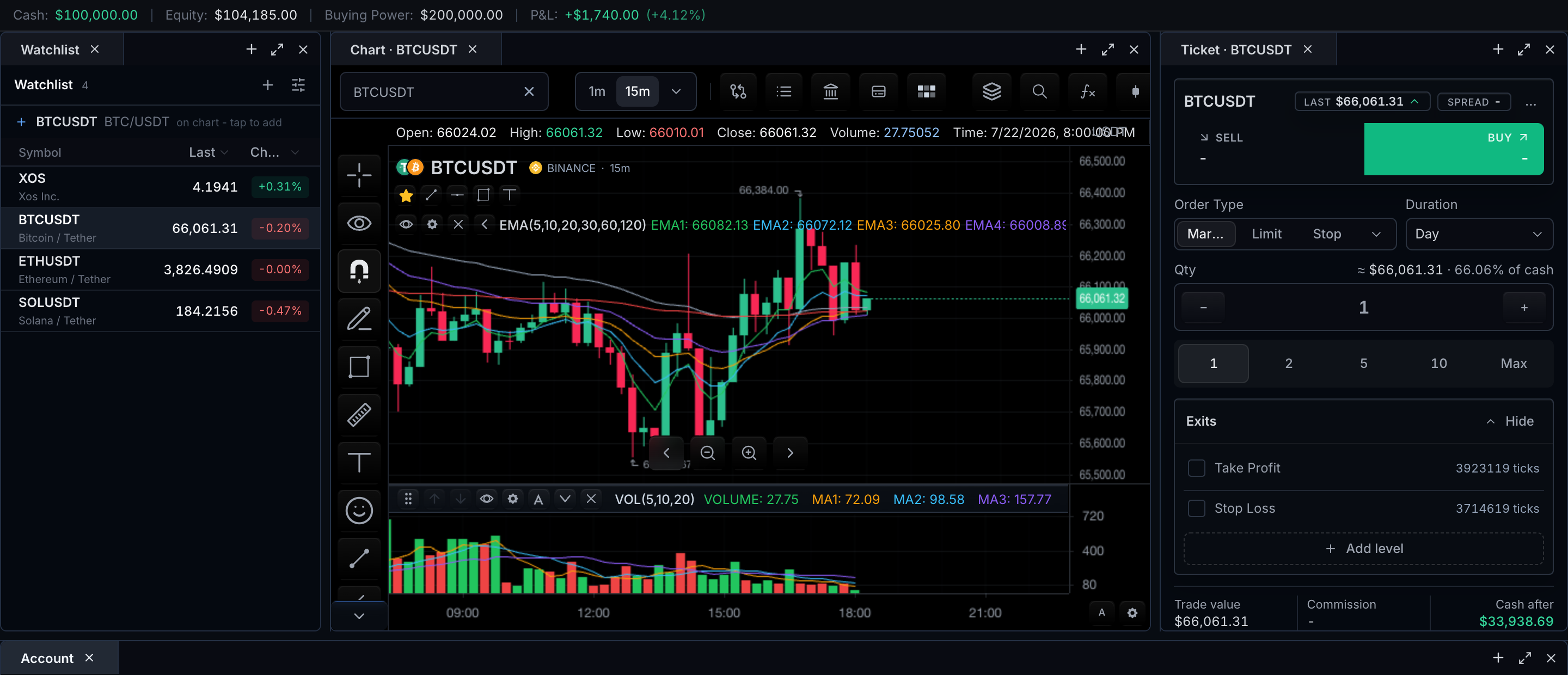
A workspace is one widget, not several. A nested multiChart configuration gives every chart a stable chartId, and widget services fall back to the active chart only where an API explicitly allows the id to be omitted. Ambiguity about which chart an operation targets never reaches the SDK.
Layout and state
State ownership
| State | Owner |
|---|---|
| Chart membership and active chart | widget.workspace() |
| Symbol, interval, panes, indicators, drawings | The chart identified by chartId |
| Crosshair or interval synchronization | multiChart.sync |
| Saved chart layouts | widget.chartLayouts() |
| Application panels outside the widget | The host application |
1. Declare stable chart identities
multiChart: {
  charts: [
    { chartId: 'primary', title: 'AAPL', symbol: 'AAPL', interval: '15m', datafeed },
    { chartId: 'secondary', title: 'MSFT', symbol: 'MSFT', interval: '15m', datafeed },
  ],
  activeChartId: 'primary',
  sync: { crosshair: true, interval: true },
  maxCharts: 4,
}
Never derive semantic ownership from array position. Persist and address charts by chartId.
2. Enable workspace controls deliberately
features: {
  layoutStorage: true,
  workspaceTabs: { enabled: true, restoreActive: true },
}
Checkpoint: both chart titles render, the primary chart is active, and workspace controls do not appear unless enabled.
3. Address one chart explicitly
await widget.ready();

widget.chart('secondary').setSymbol('NVDA');
widget.maximizeChart('primary');
widget.restoreMaximizedChart();
Checkpoint: only the secondary chart switches to NVDA while the primary keeps AAPL; maximize fills the workspace with the primary chart and restore returns both charts with their state intact. When the workspace unmounts, widget.destroy() tears down every chart and subscription.
Verification
primaryandsecondaryremain stable after symbol changes.- Crosshair and interval synchronize; symbol does not unless explicitly configured.
- Maximize/restore changes presentation without destroying chart state.
- Removing a chart releases its subscriptions and leaves remaining IDs valid.
- Saved layout restoration does not overwrite host-owned panels.
Complete typed example
import { createTradeScriptSdk, type MarketDataFeed } from '@tradescript/pro/sdk/core';

declare const datafeed: MarketDataFeed;
declare const deploymentLease: string;

const sdk = await createTradeScriptSdk({ lease: deploymentLease });
const mounted = sdk.chart.mount({
  mount: '#workspace',
  multiChart: {
    charts: [
      { chartId: 'primary', title: 'AAPL', symbol: 'AAPL', interval: '15m', datafeed },
      { chartId: 'secondary', title: 'MSFT', symbol: 'MSFT', interval: '15m', datafeed },
    ],
    activeChartId: 'primary',
    sync: { crosshair: true, interval: true },
    maxCharts: 4,
  },
  features: {
    layoutStorage: true,
    workspaceTabs: { enabled: true, restoreActive: true },
  },
});

const widget = await mounted.ready();
widget.chart('secondary').setSymbol('NVDA');
widget.maximizeChart('primary');
widget.restoreMaximizedChart();
Next steps
- Chart Layouts — save and restore the whole workspace, grid metadata included.
- Widget API — the workspace composition methods behind this guide.
- Comparisons — overlay symbols within a chart instead of adding another chart.