Widget Hotkeys
Every interactive TradeScript widget registers a keyboard action inventory with a composition-scoped registry. The registry owns defaults, remaps, disables, persistence, and collision checks, and it is the same object the UI edits and your host code drives.
Hotkeys are scoped to a composition, not to the whole browser page. A trading terminal owns one scope automatically. When you compose widgets yourself, provide one registry to the group that must not collide.
The editor
One editor serves every widget. Open it from the keyboard button in a widget header, from a widget panel tab, from the chart toolbar's Hotkeys button, or from Settings → Keyboard shortcuts → Hotkeys.
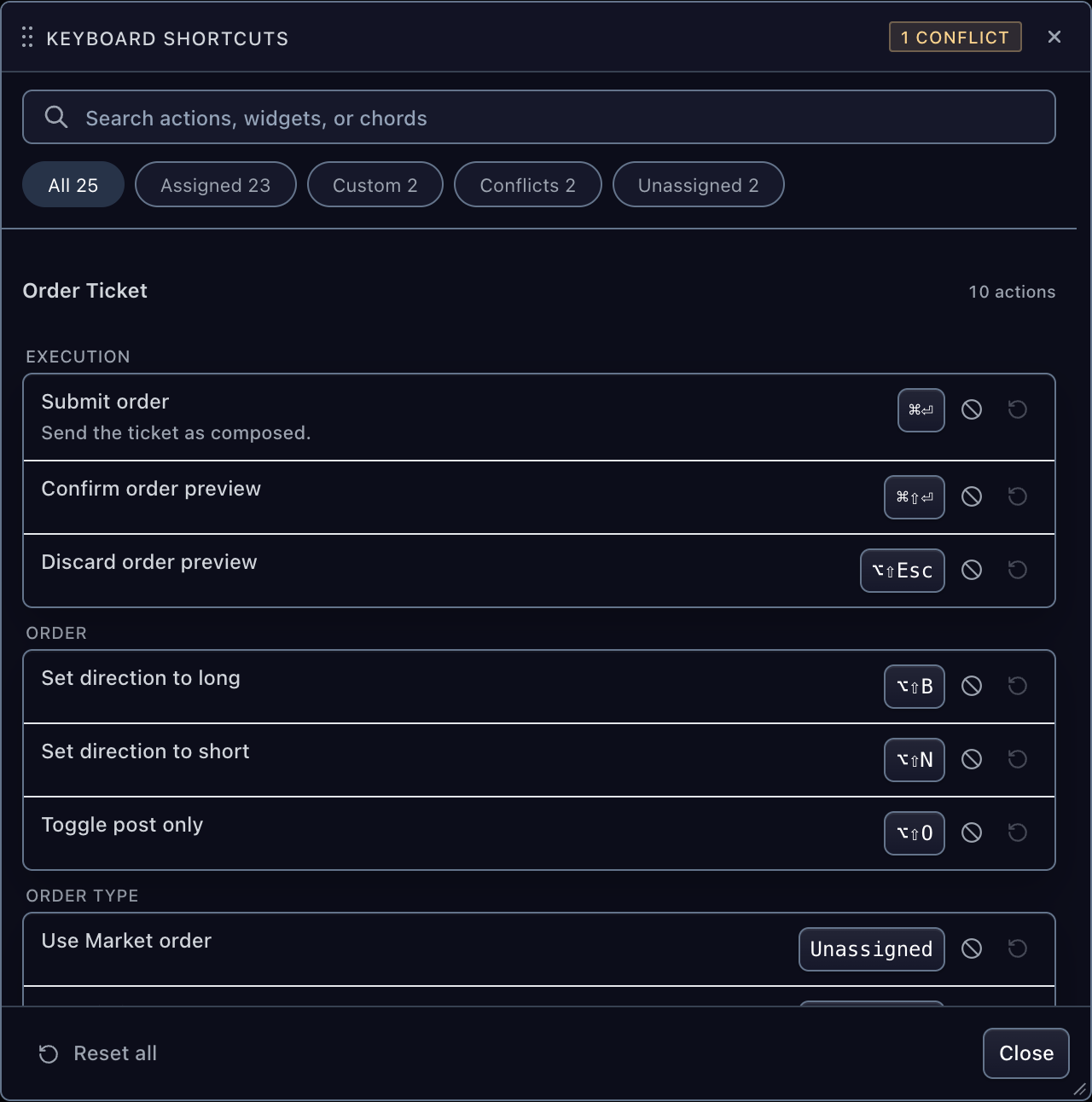
Within it:
- Search matches action names, descriptions, group names, widget names, and
chords, so
emergencyand⌥⇧Fboth find Flatten position. - Filter pills narrow to Assigned, Custom, Conflicts, or Unassigned, each showing its own count. A filter with nothing to show is dimmed rather than hidden, so the row never reflows as the user edits.
- Actions are grouped under the headings their catalog declares — Execution, Emergency, Quantity, Legs, Navigation — instead of one flat list.
- Chords read as chords:
⌘⏎on macOS,Ctrl+Enterelsewhere. - Recording is explicit: click a chord chip, press the combination, and it
is claimed.
Escapecancels,Backspaceclears the binding. - Collisions name the other side and offer Take the chord, which releases the current owner and reassigns in one step.
- Reset all returns every action in the scope to its shipped chord.
A chord claimed by two actions runs neither, so the header counts the collisions and the Conflicts filter lists exactly the rows to fix:
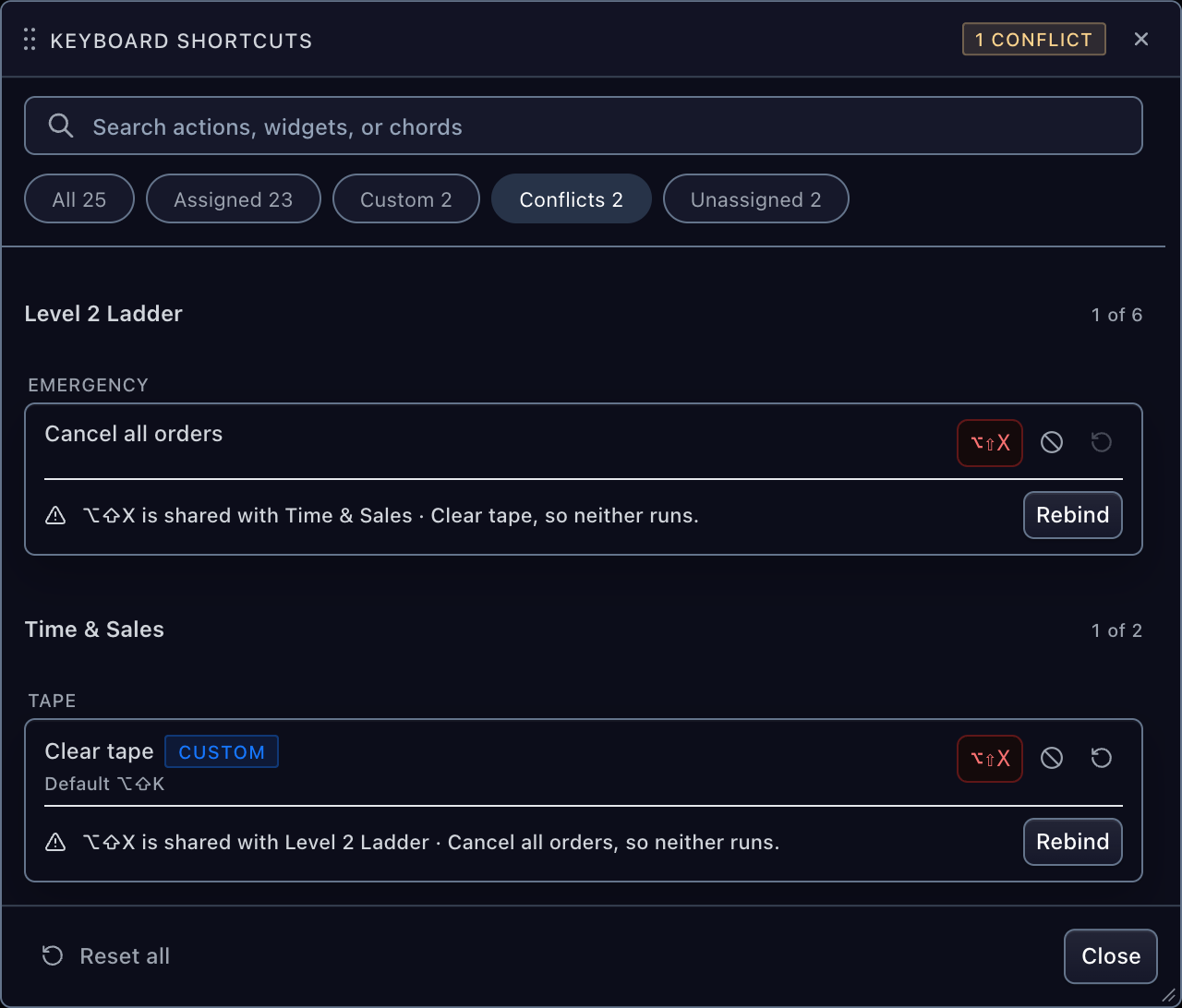
Opened from a chart, the editor is capped at 75% of that chart's grid height, with a fixed header and footer and one scrollable body.
Scope
Launched from a widget, the editor opens on that widget alone and names it in
the header. The pill beside it widens to Workspace — every action every
mounted widget has registered in the same scope, which is also what you get
when you mount the dialog without an instanceId.
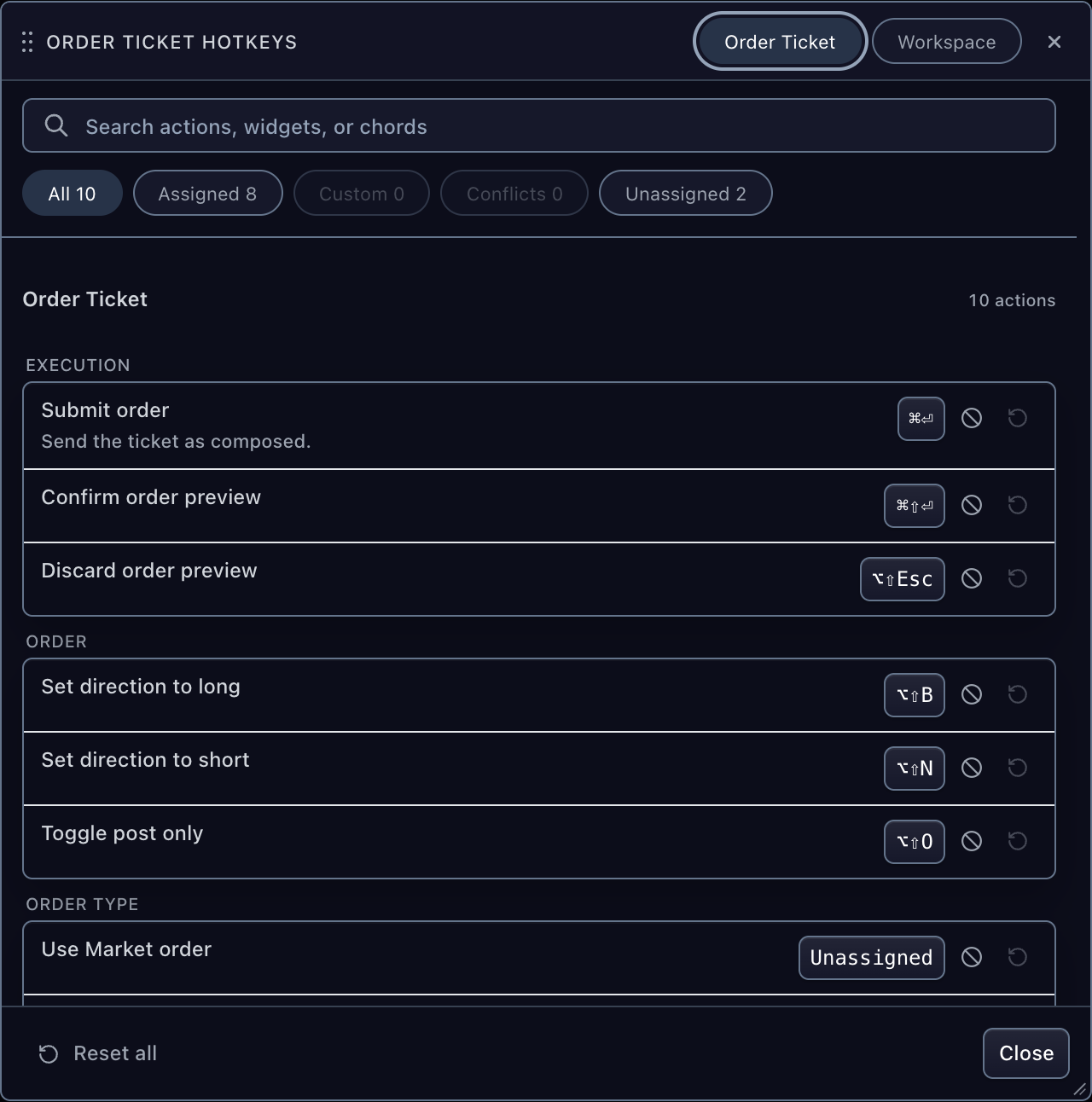
The pair only appears when the scope holds more than one registered widget. Chart chrome registers separately from the chart — the data table, the workspace tab strip, and the session badge each own an action inventory — so a lone chart still offers the workspace view.
Defaults
High-frequency actions ship bound. DEFAULT_WIDGET_HOTKEY_BINDINGS is the
single table behind them, and a test enforces that no chord in it is claimed
twice or collides with a built-in chart shortcut.
| Widget | Action | Default |
|---|---|---|
| Order ticket | Submit order | mod+enter |
| Order ticket | Confirm preview | mod+shift+enter |
| Order ticket | Long / short | alt+shift+b / alt+shift+n |
| Level 2 ladder | Buy / sell at market | alt+shift+arrowup / alt+shift+arrowdown |
| Level 2 ladder | Cancel all / flatten / reverse | alt+shift+x / alt+shift+f / alt+shift+z |
| Time & sales | Pause or resume | alt+shift+p |
| Market depth | Show or hide venues | alt+shift+v |
| Watchlist | Previous / next symbol | alt+arrowup / alt+arrowdown |
| Option ticket | Submit | mod+alt+enter |
Enumerated long tails — order types, quick quantities, durations, expirations,
strike counts, account pages, depth levels, widget panel tabs — ship deliberately
unassigned so the table stays reviewable and free chords remain for your users
to claim. Read the full table with DEFAULT_WIDGET_HOTKEY_BINDINGS, or one
entry with defaultWidgetHotkeyBinding(widgetKind, actionId).
Charts keep their own 32 built-in shortcuts from listBuiltInActions()
(mod+z, ⌥T for a trend line, ⌥A for an alert), remapped through
chart.setShortcuts({ bindings }). Both sets share one collision scope.
Complete trading terminal
BrokerTradingTerminal creates the registry and passes it to the chart and
every mounted panel. TradingTerminalApi.hotkeys is the same registry used by
the visible setup buttons.
import {
  BrokerTradingTerminal,
} from '@tradescript/pro/react'
import type { TradingTerminalApi } from '@tradescript/pro/sdk/trading'

let terminal: TradingTerminalApi | undefined

<BrokerTradingTerminal
  sdk={sdk}
  terminalId="primary-terminal"
  adapter={adapter}
  symbol="AAPL"
  panels={{ marketDepth: true, timeAndSales: true, watchlist: true }}
  watchlistAdapter={watchlistAdapter}
  onTerminalReady={(api) => { terminal = api }}
/>

await terminal?.hotkeys.setBinding(
  { widgetKind: 'order-ticket', actionId: 'submit' },
  'mod+enter',
)
The terminal tab renders the setup button. Child widgets hide their duplicate header button but still register and dispatch against their exact panel instance.
Compose widgets without collisions
Create one registry and pass it through TradeScriptProvider or
HotkeyRegistryProvider:
import {
  createHotkeyRegistry,
  createLocalStorageHotkeyStorage,
} from '@tradescript/pro/sdk'
import {
  MarketDepthWidget,
  TimeAndSalesWidget,
  TradeScriptProvider,
} from '@tradescript/pro/react'

const hotkeys = createHotkeyRegistry({
  scopeId: 'main-workspace',
  storage: createLocalStorageHotkeyStorage('my-app:hotkeys'),
  onConflict: (conflicts) => console.warn('Hotkey conflict', conflicts),
})

<TradeScriptProvider sdk={sdk} hotkeys={hotkeys}>
  <MarketDepthWidget
    controller={marketData}
    symbol={symbol}
    hotkeyInstanceId="depth-left"
  />
  <TimeAndSalesWidget
    marketData={marketData}
    symbol={symbol}
    hotkeyInstanceId="tape-bottom"
  />
</TradeScriptProvider>
If two instances have the same widgetKind and actionId, they intentionally
share one logical binding. Focus decides which instance runs. A different
widget/action pair cannot claim the same chord inside that registry scope.
Open the editor yourself
HotkeySettingsDialog is the editor as a component. Mount it wherever your own
chrome should open it — a preferences screen, a command palette result, a menu
item — with or without a focused widget.
import { HotkeySettingsDialog } from '@tradescript/pro/react'

<HotkeySettingsDialog
  open={open}
  onOpenChange={setOpen}
  registry={hotkeys}
/>
Omit instanceId for the whole composition, or pass one to open focused on a
single widget. buildHotkeyEditorModel is the same pure read model the dialog
renders, if you would rather draw your own surface over it.
Handle a programmatic assignment
setBinding returns a typed result. It never silently replaces another
widget's binding.
const result = await hotkeys.setBinding(
  { widgetKind: 'time-and-sales', actionId: 'toggle-paused' },
  'alt+t',
)

if (!result.ok) {
  for (const conflict of result.conflicts) {
    console.log(conflict.binding, conflict.occupiedBy)
  }
}
Use null to disable an action, resetBinding(target) to return it to the
widget default, and resetAllBindings() to remove every override in the
scope.
Persist to your backend
Supply a HotkeyStorageAdapter when user settings live on your server:
const hotkeys = createHotkeyRegistry({
  scopeId: `terminal:${user.id}`,
  storage: {
    load: async (scopeId) => api.getHotkeys(scopeId),
    save: async (scopeId, bindings) => api.putHotkeys(scopeId, bindings),
  },
})

await hotkeys.ready()
What the seam guarantees:
loadruns once, at construction. Every mutation awaits that hydration first, so a binding the user changes during a slow load is never clobbered by the response.savereceives the complete override map after every accepted change — no diffing, no debounce. Coalesce writes in your adapter if your API prefers it.- The map is
Record<string, string | null>, keyed byJSON.stringify([widgetKind, actionId]), wherenullmeans the user disabled the action. No instance ids and no widget panel arrangement coupling: the same record applies to any composition that registers those widget kinds. ready()resolves once hydration finishes. The registry waits for persisted overrides before dispatching. In-memory registries dispatch synchronously, so browser default handling is prevented in the originating key event.
Omit storage and nothing persists — the scope lives for the session.
createLocalStorageHotkeyStorage(prefix) is the browser-local adapter for
hosts without a settings backend.
Watch for changes
subscribe reports every registry revision, so your own chrome can save,
badge, or sync without polling:
const stop = hotkeys.subscribe((event) => {
  if (event.type === 'binding-change') markShortcutsDirty(event.target)
})
event.type | Fired when |
|---|---|
registration-change | A widget mounted or unmounted its action inventory. |
binding-change | An assignment, reset, disable, or imported map was accepted. |
action-run | A dispatched chord ran its action. |
hydrated | Persisted overrides finished loading. |
Every event carries a monotonic revision, plus instanceId or target when
the change belongs to one of them. A bulk import emits a single
binding-change with no target, not one per entry.
Share a setup between users
exportBindings() and applyBindings() are the two halves of a portable
shortcut profile. The exported record is plain JSON — store it as a team preset,
attach it to a user profile, or let one trader hand it to another.
// Publish
await api.putPreset('desk-scalping', hotkeys.exportBindings())

// Adopt
const result = await hotkeys.applyBindings(
  await api.getPreset('desk-scalping'),
  { replace: true },
)

for (const entry of result.rejected) {
  console.log(entry.target, entry.binding, entry.conflicts)
}
applyBindings judges the map as a finished state rather than entry by entry,
which is what makes a real preset survive the trip: a profile that swaps two
chords lands intact, where the same two setBinding calls would reject the
first half of the swap. Entries that would still collide once the whole map is
placed are dropped and returned in rejected, each naming the action already
holding the chord — the rest of the preset applies. applied counts the
entries that landed and ok is true only when none were dropped.
replace: true drops overrides absent from the incoming map, so the user ends
up with exactly the preset. The default merges the map over what the user
already has. Either way the scope persists once and emits one
binding-change, and entries addressing widgets that are not currently mounted
are kept for when they are.
Add host actions to a built-in widget
Every hotkey-enabled widget accepts hotkeyActions. The action runs inside the
focused widget boundary and participates in the same collision checks. Declare
defaultBinding to ship it bound; omit it to leave the chord to the user.
<BrokerOrderTicket
  broker={broker}
  symbol="AAPL"
  hotkeyInstanceId="ticket-right"
  hotkeyActions={[{
    id: 'focus-risk-field',
    label: 'Focus risk field',
    group: 'Host actions',
    defaultBinding: 'alt+shift+7',
    run: () => riskInputRef.current?.focus(),
  }]}
/>
Built-in catalogs include every finite command that can run without inventing input:
- Order submission and preview actions; direction, order type, duration, and quantity choices.
- Account pages and display modes.
- Level 2 market and emergency actions.
- Option-chain filters and option-ticket leg navigation.
- Watchlist navigation, refresh, and export.
- Depth display, tape controls, session details, and agent-console commands. Operations that require new text or a row-specific price stay attached to their existing input/row control; expose a host action that focuses or opens that UI rather than fabricating a value.
Which widgets participate
Charts, chart data tables, workspace tab strips, market depth, time and sales,
watchlists, account panels, account summary bars, order tickets, order ticket
launchers, account action dialogs, Level 2 ladders, option chains, option
tickets, session badges, agent consoles, and every panel in a
WidgetLayoutContainer.
Presentational controls — comparison pickers, the data window, news, instrument
details, the period bar, the storage menu — expose no action inventory and
render no keyboard button. TradeScriptMobileChart disables the entire layer:
no dispatch, no toolbar button, no editor, because a phone has no chord to
press. A keyboard-equipped shell turns it back on with
features={{ shortcuts: true }}.
Custom widget panels
WidgetLayoutWidgetDefinition.hotkeys can be a static array or a function of
the mounted panel context:
<WidgetLayoutContainer
  widgets={[{
    id: 'news',
    title: 'News',
    hotkeys: (context) => [{
      id: 'refresh',
      label: 'Refresh news',
      run: () => refreshNews(context.widgetInstanceId),
    }],
    render: () => <NewsWidget />,
  }]}
/>
WidgetLayoutContainer renders the keyboard button in each tab and registers the action
against that panel's stable widgetInstanceId.
Keep each widget definition id stable when persisting the container. See Widget layout storage for the adapter and REST contract, and Widget panel arrangements for restore semantics.
Keyboard safety
Dispatch is focus-local and ignored inside inputs, textareas, editable elements, and textboxes. A widget rendered inside its own modal — an account action dialog, or the order ticket it nests — still dispatches, because the widget's own capture boundary already scopes the event.
Cmd and Ctrl normalize to mod, so a binding cannot evade collision checks
by using the other platform spelling. Conflicting bindings fail closed: neither
action runs until the user or host resolves the collision, and the editor
surfaces the count in its header.
macOS composes Option+letter into another character — Option+C reports as
ç — so chords are matched against the physical key whenever a modifier is
held, and recorded the same way. ⌥C claims alt+c, not alt+ç. Unmodified
chords still match the character actually typed, whatever the layout.
Next steps
- Standalone Widgets by Framework — mounting the surfaces these bindings are scoped to.
- Accessibility — keyboard operability and focus behavior across the chart.
- Widget layout storage — persist the outer panel topology independently from chart storage.