Toolbars
Two toolbars frame the chart: a horizontal strip above it and a vertical drawing rail down its left edge. Both appear in every full-chrome widget, and every control in them — symbol search, interval, timezone, storage, screenshots, and host-defined actions — is individually gated by features.
Top toolbar anatomy

BTCUSDT · 15m · dark theme — top toolbar captured from the live playground.
Twelve controls run left to right:
- Symbol box (
BTCUSDTwith clear button) — shows the active symbol and opens symbol search. Gated byfeatures.symbolSearch. See Symbol Search Surface. - Interval favorites and picker (
1m, active15m, chevron) — favorites stay inline; the chevron opens the interval menu. See Resolution. - Compare — opens the compare-symbols dialog. Gated by
features.comparisons. See Comparisons. - Layout storage — save/load layout menu. Gated by
features.layoutStorage. See Storage. - Symbol search button (magnifier) — built-in action
open-symbol-search. - Indicators (fx) — opens the indicator dialog; built-in action
open-indicators, gated byfeatures.builtInIndicators. See Indicators. - Chart type (candle icon) — opens the chart-type menu. Gated by
features.chartTypes. - Time range (
1M) — opens the range presets menu backed byChartWidgetOptions.timeFrames. See Time Scale. - Undo / redo — built-in actions
undoandredo. - Timezone (clock) — opens the timezone selector. See Timezone Selector.
- Snapshot (camera) — capture/export menu; built-in action
take-snapshot. See Snapshots. - Fullscreen — toggles full-window chrome;
fullscreen: truestarts the widget that way.
Drawing toolbar anatomy

BTCUSDT · 15m · dark theme — left drawing toolbar captured from the live playground.
Five groups run top to bottom:
- Cursor/crosshair control — pointer behavior over the chart.
- Visibility toggle — hide or show all drawings (also built-in action
toggle-all-drawings). - Magnet mode (highlighted) — snaps drawing points to bar values.
- Tool family buttons — lines, shapes, measure, text, emoji, trend-line, Fibonacci, and pattern families; each opens a flyout with the family's tools.
- Remove and lock controls (lower rail) — delete drawings and lock the drawing layer.
The whole rail is gated by features.drawings; per-tool access is controlled by features.drawingTools. Favorite tools also surface as a compact row near the legend, positioned by ChartDisplaySettings.favoritesToolbar ('legend' | 'sidebar' | 'floating' | 'both').
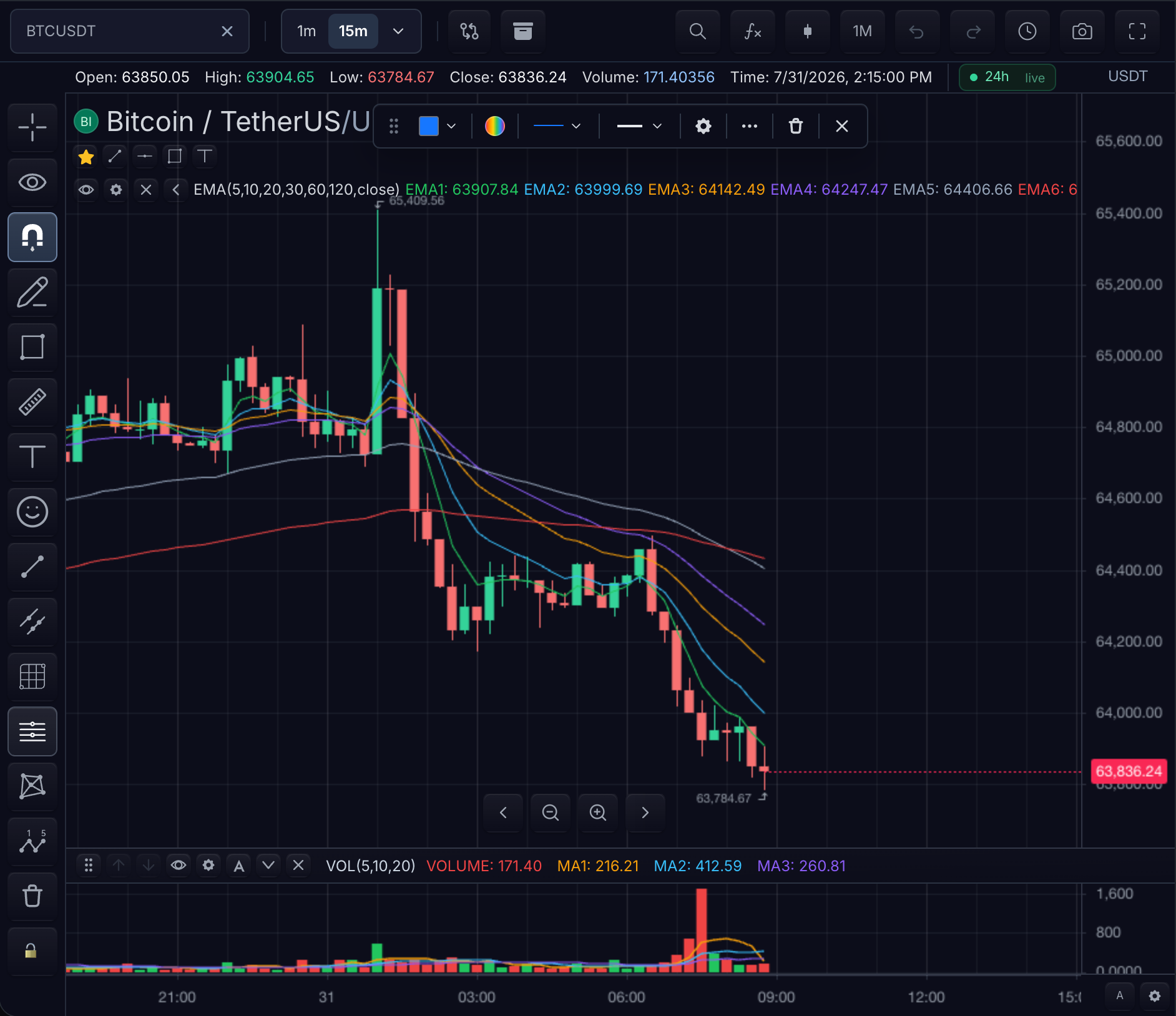
Drawing rail with the floating drawing toolbar open · dark theme — selecting a tool or drawing raises this toolbar; captured from the live playground.
Menus opened from the toolbar
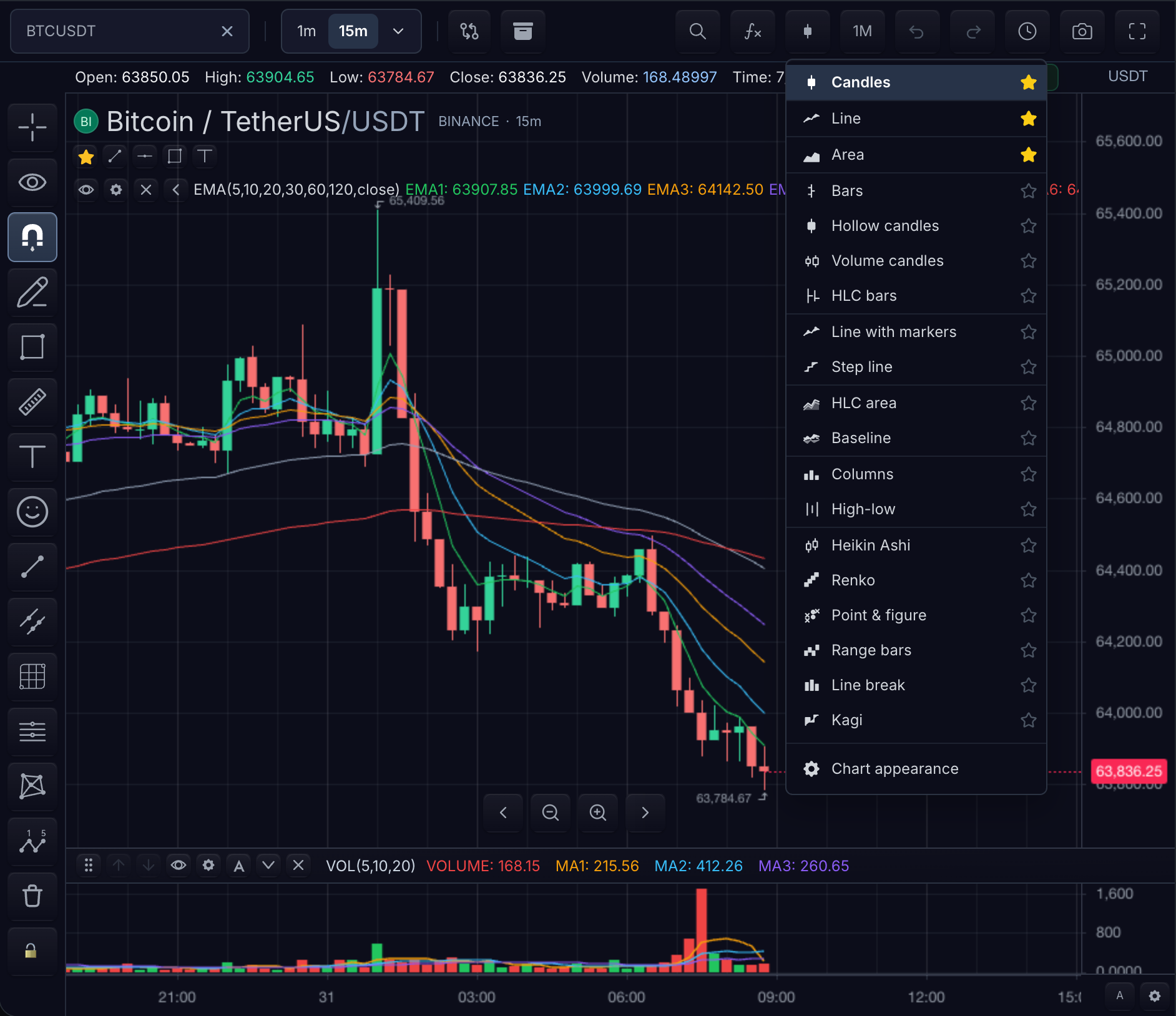
Chart type menu open · BTCUSDT · 15m · dark theme — starred entries become toolbar favorites.
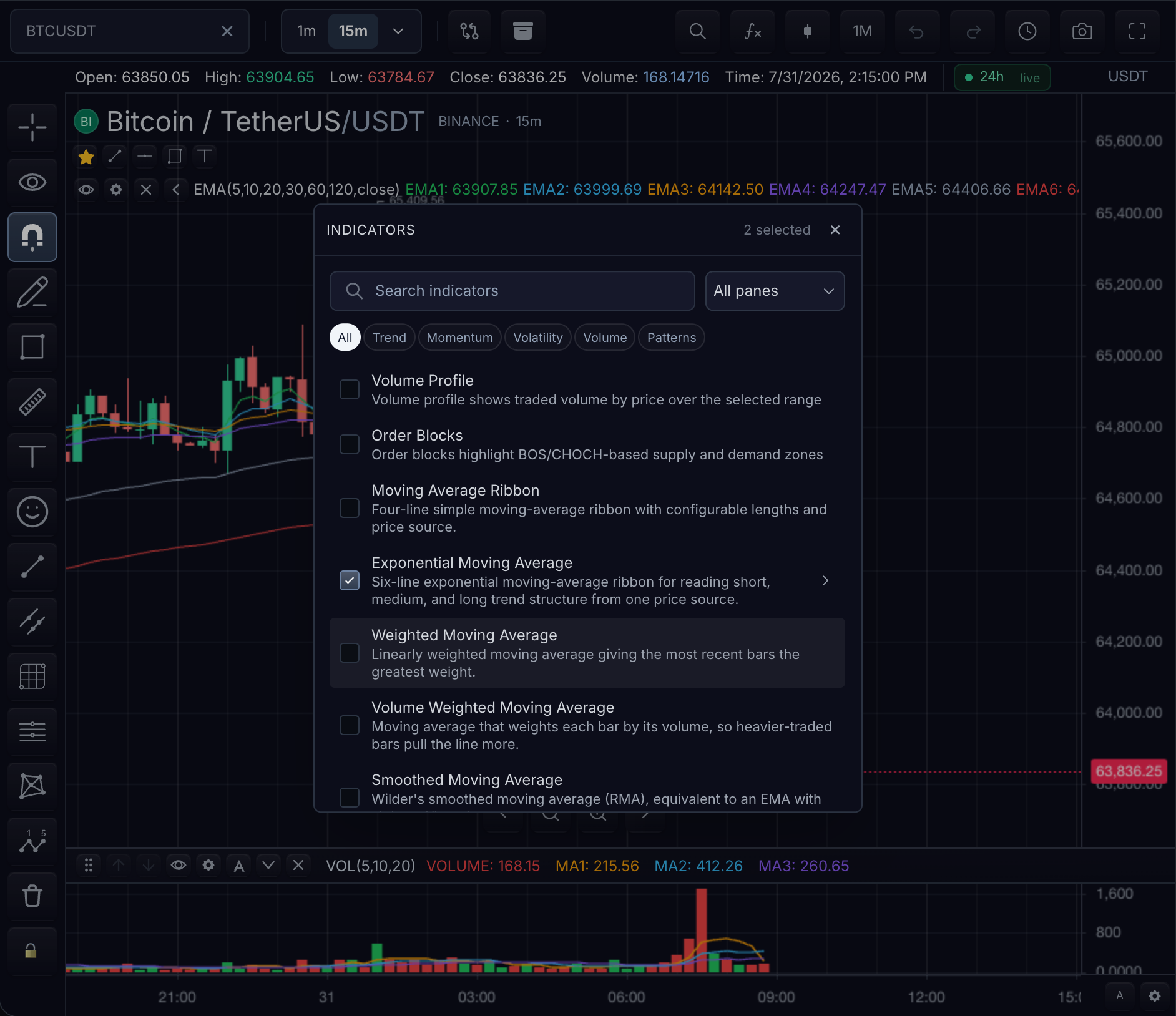
Indicators dialog open · BTCUSDT · 15m · dark theme — opened from the fx toolbar button.
Regions and feature gates
| Region | Representative actions | Gate or customization |
|---|---|---|
| Symbol and interval | Search, favorites, picker | features.symbolSearch, interval capabilities |
| Data and indicators | Compare, indicators, chart type | features.comparisons, features.builtInIndicators, features.chartTypes |
| Storage and capture | Layout/template menu, snapshot | features.layoutStorage, snapshot configuration |
| History and view | Range, undo/redo, timezone, fullscreen | Built-in actions and display settings |
| Drawing rail | Tool families, magnet, visibility, remove | features.drawings, features.drawingTools, favorites |
| Host actions | Registered buttons and groups | registerAction + setToolbar |
Hidden and disabled states
- A
falsefeature gate removes its whole region: for examplefeatures.drawings: falseremoves the drawing rail andfeatures.symbolSearch: falseremoves the symbol box and search button. customization().setToolbar({ actionIds })controls exactly which action IDs render; IDs left out are hidden without being unregistered.features.actions: falsehides host-owned registered actions from SDK toolbar, context-menu, and custom-shortcut projection; built-in shortcut actions stay governed byfeatures.shortcuts.- Interval entries the current symbol or feed cannot serve appear disabled in the picker rather than silently failing — see Resolution.
- On compact layouts, keep primary actions reachable, move secondary actions into an overflow menu, retain accessible names for icon-only buttons, and never rely on hover to expose the only label.
Current surface
featurescontrols large toolbar areas such as drawing tools, built-in indicators, symbol search, storage, replay, trading, order flow, and context menus.customization().registerAction(...)creates host-owned actions.customization().setToolbar(...)controls visible/hidden action IDs and renders grouped action IDs as toolbar dropdowns.BUILT_IN_ACTIONS,BUILT_IN_ACTION_IDS, andlistBuiltInActions()expose the SDK-owned built-in action inventory for host toolbars, shortcut remapping, and migration shims.- Drawing settings route through the drawing toolbar and tool-specific settings surfaces.
import { BUILT_IN_ACTION_IDS, listBuiltInActions } from '@tradescript/pro/sdk';

const builtInIds = new Set(BUILT_IN_ACTION_IDS);
const toolbarIds = listBuiltInActions()
  .filter((action) => builtInIds.has(action.id))
  .filter((action) => ['open-symbol-search', 'open-indicators', 'take-snapshot'].includes(action.id))
  .map((action) => action.id);

chart.customization().setToolbar({
  actionIds: toolbarIds,
});
Use ToolbarCustomization.groups to compose grouped toolbar actions and dropdowns.
Mobile Toolbar
features.mobileToolbar: true switches the top period bar into compact mobile chrome: wrapping rows, smaller gaps, flexible symbol search width, and icon-only text-bearing actions such as watchlist, options, trade, and add-execution.
sdk.chart.mount({
  mount: '#chart',
  symbol: 'AAPL',
  interval: '1D',
  datafeed,
  features: {
    mobileToolbar: true,
  },
});
This does not infer device type from the viewport. Hosts that want breakpoint-driven behavior should toggle features.mobileToolbar from their own layout state.
Related pages
- Resolution — the interval picker in detail
- Symbol Search Surface — the search surface the symbol box opens
- Timezone Selector — the timezone selector
- Snapshots — capture and export behavior
- Drawing Tools — tool catalog and persistence