Trading terminal
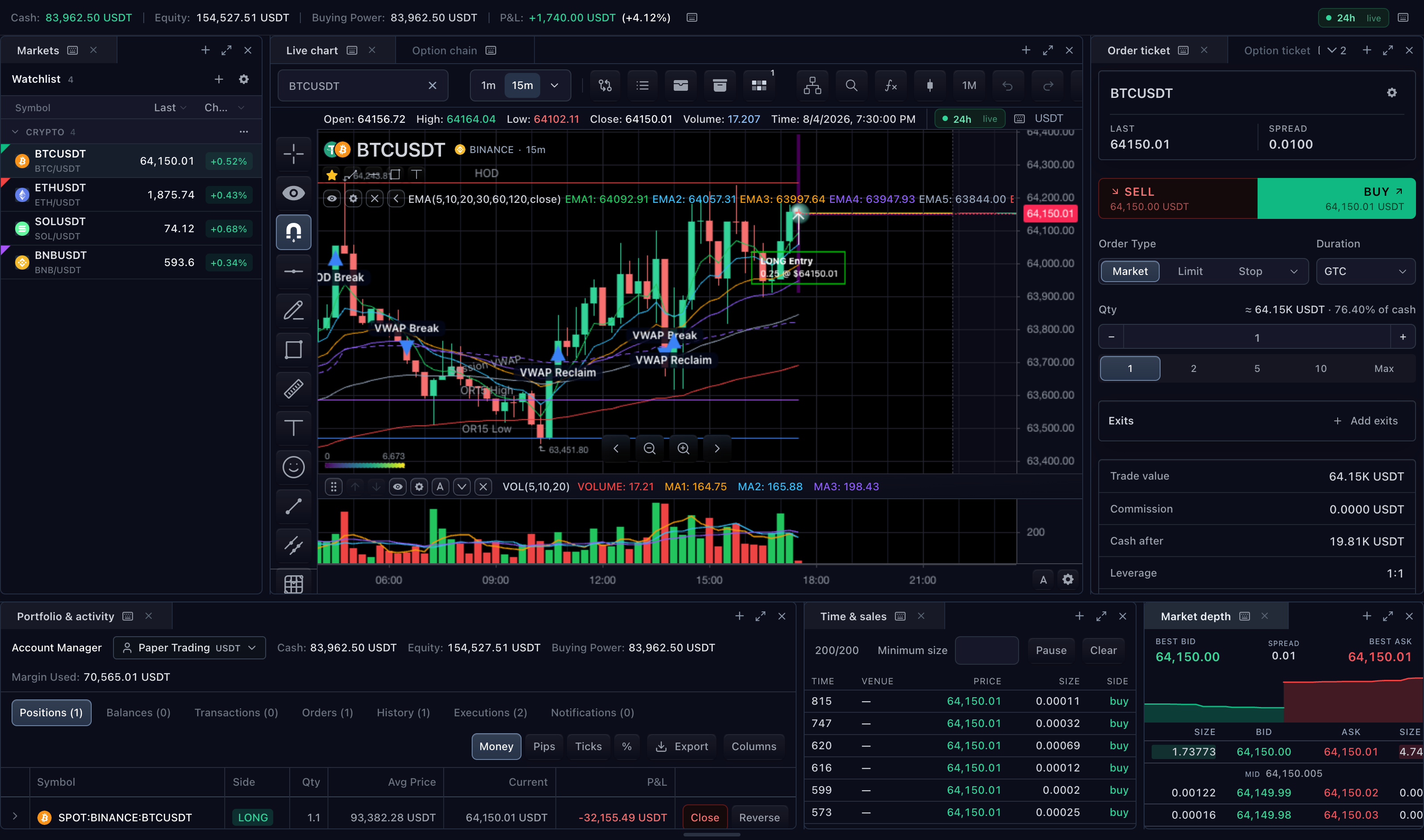
sdk.tradingTerminal.mount() is the framework-neutral composition root for a
complete trading workspace. It is the same surface used by the React wrapper.
Supply raw market data or one host-owned composite adapter. Add a broker or
trading controller only when the terminal includes order, account, or option
ticket surfaces.
Mount the terminal
Give the host an explicit height. The terminal and its widget panel arrangement fill the
mount; the panel container's defaultHeight applies only when vertical resizing is
enabled.
import type {
  MarketDataFeed,
  SdkSymbolInfo,
  TradeScriptSdkProducts,
  TradingBrokerAdapter,
  TradingTerminalApi,
} from '@tradescript/pro/sdk';

declare const sdk: TradeScriptSdkProducts;
declare const datafeed: MarketDataFeed;
declare const broker: TradingBrokerAdapter;

const symbol: SdkSymbolInfo = {
  ticker: 'AAPL',
  canonicalSymbol: 'provider:AAPL',
  exchange: 'NASDAQ',
  type: 'stock',
};

const host = document.querySelector<HTMLElement>('#terminal');
if (host === null) throw new Error('Missing #terminal mount');
host.style.height = '720px';

let terminal: TradingTerminalApi | undefined;
let connection: Promise<void> = Promise.resolve();

const mounted = sdk.tradingTerminal.mount({
  mount: host,
  datafeed,
  broker,
  symbol,
  interval: '1D',
  panels: { orderTicket: true, accountPanel: true },
  onTerminalReady(api) {
    terminal = api;
    if (!api.trading) throw new Error('Trading terminal did not create its trading controller');
    const trading = api.trading;
    connection = (async () => {
      await trading.connect();
      await trading.getState();
    })();
    void connection.catch((error: unknown) => {
      console.error('Trading connection failed', error);
    });
  },
});

export async function removeTerminal(): Promise<void> {
  try {
    await connection;
  } catch {
    // The connection error was already reported above.
  }
  try {
    await terminal?.trading?.disconnect();
  } finally {
    terminal = undefined;
    mounted.destroy();
  }
}
The terminal creates the composite adapter and trading controller in this
shape. Call removeTerminal() before the route removes the mount so the broker
session can close before synchronous surface destruction.
React alternative
BrokerTradingTerminal accepts the same neutral surface options plus React
render extensions. Keep asynchronous broker shutdown in the route action that
causes unmount, not in a React effect cleanup function.
import { useRef } from 'react';
import type {
  MarketDataFeed,
  SdkSymbolInfo,
  TradeScriptSdkProducts,
  TradingBrokerAdapter,
  TradingTerminalApi,
} from '@tradescript/pro/sdk';
import { BrokerTradingTerminal } from '@tradescript/pro/react/widgets/trading-terminal';

declare const sdk: TradeScriptSdkProducts;
declare const datafeed: MarketDataFeed;
declare const broker: TradingBrokerAdapter;
declare const symbol: SdkSymbolInfo;

export function TerminalRoute({ onLeave }: { onLeave: () => void }) {
  const terminal = useRef<TradingTerminalApi | undefined>(undefined);
  const connection = useRef<Promise<void>>(Promise.resolve());

  async function leave(): Promise<void> {
    try {
      await connection.current;
    } catch {
      // The connection error was already reported below.
    }
    try {
      await terminal.current?.trading?.disconnect();
    } finally {
      onLeave();
    }
  }

  return (
    <>
      <BrokerTradingTerminal
        sdk={sdk}
        datafeed={datafeed}
        broker={broker}
        symbol={symbol}
        interval="1D"
        style={{ height: 720 }}
        onTerminalReady={(api) => {
          terminal.current = api;
          if (!api.trading) throw new Error('Trading terminal did not create its trading controller');
          const trading = api.trading;
          connection.current = (async () => {
            await trading.connect();
            await trading.getState();
          })();
          void connection.current.catch((error: unknown) => {
            console.error('Trading connection failed', error);
          });
        }}
      />
      <button type="button" onClick={() => void leave()}>Leave terminal</button>
    </>
  );
}
Choose one authority shape
The authority inputs are exclusive. adapter cannot be combined with
datafeed, broker, trading, or symbolLink; without an adapter, never
supply both a broker and a controller.
| Supply | Controller and adapter owner | Shutdown responsibility |
|---|---|---|
datafeed | Terminal creates a market-data-only adapter | Destroy the mount |
datafeed + broker | Terminal creates both | Disconnect the returned controller, then destroy the mount |
datafeed + trading | Host owns the controller; terminal creates the composite adapter | Destroy the mount; disconnect the controller only after its last host consumer |
adapter | Host owns the adapter and its injected authorities | Destroy every mount first, then destroy or disconnect host authorities at their composition boundary |
For a market-data-only terminal, explicitly disable the trading surfaces that
default on: orderTicket, accountPanel, and accountSummary. The depth
ladder remains usable as a read-only market-depth surface, and the option chain
remains usable for browsing and contract selection. Their execution controls
are unavailable until a trading authority is supplied. In this composition,
TradingTerminalApi.trading is undefined.
Destroying a terminal-created adapter releases controllers it created. It does
not destroy a host-injected trading controller. Similarly, destroying a
host-owned adapter releases only the authorities that adapter itself created.
Panels and status regions
The chart and optional work surfaces below are Dockview panels. They are movable and belong to the saved panel arrangement.
| Dockview panel | Default | Visibility override | Configuration |
|---|---|---|---|
| Chart | Always present | — | chartOptions |
| Order ticket | On | panels.orderTicket | orderTicketOptions |
| Account Manager | On | panels.accountPanel | accountPanelOptions |
| Watchlist | On when watchlistAdapter is supplied | panels.watchlist | watchlistAdapter, watchlistOptions |
| Depth ladder | Off | panels.depthLadder | depthLadderOptions |
| Market depth | Off | panels.marketDepth | marketDepthOptions |
| Time & Sales | Off | panels.timeAndSales | timeAndSalesOptions |
| Option chain | Off | panels.optionChain | optionChainOptions |
| Option ticket | Off | panels.optionTicket | optionTicketOptions |
| Agent chat | Off | panels.agentChat | agentChatOptions |
| Agent Console | Off | panels.agentConsole | agentConsoleOptions |
Three terminal regions sit outside Dockview and are not movable or serialized with the panel arrangement.
Agent Chat and Agent Console are independent Dockview panels. Enable Chat only,
Console only, both, or neither with their respective panel flags. Explicit
panels.agentChat: true mounts Chat even when its provider has not been
configured; in that setup state its model selector, composer, and send action
are disabled, and it performs no model discovery, network request, or fallback
egress. Agent Console requires the customer-owned controller supplied through
agentConsoleOptions.
| Agent panels | panels | Additional configuration |
|---|---|---|
| Neither | { agentChat: false, agentConsole: false } | None |
| Chat only | { agentChat: true, agentConsole: false } | agentChatOptions.provider enables model chat; omit it for setup state |
| Console only | { agentChat: false, agentConsole: true } | agentConsoleOptions.controller |
| Both | { agentChat: true, agentConsole: true } | Customer Chat provider when ready, plus the Console controller |
The fresh complete Agent Workspace uses this topology:
| Top row | Watchlist | Chart | Order ticket | Agent Console |
|---|---|---|---|---|
| Bottom row | Account | Agent Chat | Market depth | Time & Sales |
Chat and Account are distinct groups. Agent Console occupies the top-right cell
with Time & Sales directly below it. Partial configurations keep Chat as a
normal independent panel; if Account is absent, Chat falls back to its own
260px bottom split. defaultLayout and restored panel state take precedence
over the fresh topology.
The SDK receives no model credentials. See Agent chat to configure the customer provider, access picker, and page-bound TradeScript tools, and Agent Console to configure the customer-owned MCP connection controller.
| Region | Default | Configuration |
|---|---|---|
| Account summary in the status bar | On | panels.accountSummary, accountSummaryOptions |
| Market-session status | Off | statusBarOptions.session |
| Account action dialog | Opens on an account action request | accountActionDialogOptions |
Required capabilities
Enable only surfaces supported by the supplied authorities.
| Surface | Market-data contract | Trading contract |
|---|---|---|
| Chart | loadBars; realtime methods when live updates are enabled | — |
| Order ticket | getQuotes and subscribeQuotes for a live quote | getState, placeOrder, and getTradingSymbolInfo for symbol-specific rules; preview and modify methods for those enabled flows |
| Account summary | — | getState with account balance fields |
| Account Manager | — | getState; getAccountManagerInfo plus matching table methods for broker-declared custom pages |
| Watchlist | A watchlistAdapter, plus quote snapshot and stream methods | — |
| Depth ladder and market depth | Declared depth support with subscribeDepth; getDepth supplies the initial snapshot | Optional for the depth ladder; order entry needs symbol rules and placement operations |
| Time & Sales | getTimeAndSales and subscribeTimeAndSales | — |
| Option chain and option ticket | getOptionContracts and getOptionQuotes | Optional for the option chain; the option ticket needs symbol rules, preview, and placement; add resolveOptionContract when the venue requires broker-native contract identity |
Operation support comes from the real feed and broker contracts. A disabled surface should not be used as a fallback for a missing capability.
Configure children
Terminal child options are typed subsets of the standalone surface props. The terminal removes authority fields such as market data, trading, symbol links, theme, controllers, and hotkey ownership, then injects its own values. The React wrapper additionally adapts React render extensions to retained DOM extensions.
import type {
  SdkSymbolInfo,
  TradeScriptAdapterApi,
  TradeScriptSdkProducts,
  TradingControllerApi,
} from '@tradescript/pro/sdk';
import { BrokerTradingTerminal } from '@tradescript/pro/react/widgets/trading-terminal';

declare const sdk: TradeScriptSdkProducts;
declare const adapter: TradeScriptAdapterApi & {
  readonly trading: TradingControllerApi;
};
declare const activeSymbol: SdkSymbolInfo;
declare const pinnedTapeSymbol: SdkSymbolInfo;

export function ConfiguredTerminal() {
  return (
    <BrokerTradingTerminal
      sdk={sdk}
      adapter={adapter}
      symbol={activeSymbol}
      style={{ height: 720 }}
      panels={{
        orderTicket: true,
        accountPanel: true,
        marketDepth: true,
        timeAndSales: true,
      }}
      labels={{
        accountPanelTitle: 'Portfolio',
        marketDepthTitle: 'Order book',
      }}
      orderTicketOptions={{
        defaultQuantity: 10,
        directionSelector: { layout: 'split', order: 'buy-sell' },
      }}
      accountPanelOptions={{ defaultPageId: 'positions' }}
      marketDepthOptions={{ levels: 20 }}
      timeAndSalesOptions={{ symbol: pinnedTapeSymbol, maxRows: 200 }}
      statusBarOptions={{ session: true }}
    />
  );
}
The objects may contain callbacks, formatters, styles, and framework-specific render extensions. They are runtime configuration, not serializable widget panel arrangement state.
Active symbol and pinning
The top-level symbol seeds the active symbol and can control later updates.
After mount, TradingTerminalApi.setSymbol() and the composite adapter's
symbolLink update the same authority. Preserve exact SdkSymbolInfo identity
instead of reconstructing a ticker-only object.
The chart, order ticket, and depth ladder follow the active terminal symbol.
Watchlist and Account Manager symbol selections update the same link. Market
depth, Time & Sales, option chain, and option ticket follow by default, but
their option objects may each provide a symbol to pin that panel. interval
belongs to the chart and is not a cross-panel authority.
Save the panel arrangement
Configure panelStorage through Widget layout storage.
Load the saved WidgetLayoutState before mounting and pass it as
defaultLayout. Save later changes with onLayoutChange; do not wait for
onTerminalReady and then replace the terminal's initial topology.
import {
  type ChartStorageAdapter,
  type SdkSymbolInfo,
  type TradeScriptAdapterApi,
  type TradeScriptSdkProducts,
  type TradingControllerApi,
  type WidgetLayoutStorageAdapter,
} from '@tradescript/pro/sdk';

declare const sdk: TradeScriptSdkProducts;
declare const adapter: TradeScriptAdapterApi & {
  readonly trading: TradingControllerApi;
};
declare const symbol: SdkSymbolInfo;
declare const chartStorage: ChartStorageAdapter;
declare const panelStorage: WidgetLayoutStorageAdapter;
const panelContext = {
  arrangementId: 'primary-terminal-panels',
  userId: 'user-123',
  workspaceId: 'main-desk',
};
const defaultLayout = (await panelStorage.load(panelContext)) ?? undefined;
let panelSaveQueue = Promise.resolve();

const host = document.querySelector<HTMLElement>('#persistent-terminal');
if (host === null) throw new Error('Missing #persistent-terminal mount');
host.style.height = '720px';

const mounted = sdk.tradingTerminal.mount({
  mount: host,
  adapter,
  symbol,
  terminalId: 'primary-terminal',
  defaultLayout,
  onLayoutChange(state) {
    panelSaveQueue = panelSaveQueue
      .then(() => panelStorage.save({ ...panelContext, state }))
      .catch((error: unknown) => {
        console.error('Panel arrangement save failed', error);
      });
  },
  chartOptions: {
    chartId: 'primary-chart',
    layoutId: 'primary-chart-layout',
    storage: chartStorage,
    loadLastChart: true,
  },
});

export async function removePersistentTerminal(): Promise<void> {
  await panelSaveQueue;
  mounted.destroy();
}
Panel arrangement and chart layouts are independent:
WidgetLayoutStatestores Dockview topology, active panels, and optional resizable container height.- Chart storage stores symbols, intervals, indicators, drawings, and chart workspace state under stable chart and chart-layout IDs.
- A chart restores automatically only when chart storage is configured and
chartOptions.loadLastChartis enabled. Its default isfalse.
Persist each state in its own key or storage authority. Restoring the panel arrangement must not overwrite chart layouts, and chart restoration must not be described as part of Dockview restoration.
See Widget layout storage for the standalone
WidgetLayoutContainer flow, exact REST route, stable widget ids, and failure
behavior. See Widget panel arrangements for the
state contract and restore lifecycle.
Teardown
Surface destruction is synchronous; broker disconnect is asynchronous. For a
terminal-created trading controller, await disconnect() before destroying the
mount. For injected controllers and adapters, release them at the host
composition boundary only after their last surface has unmounted.
Verify the integration
- Changing the active symbol updates each unpinned linked panel once.
- A pinned depth, tape, or options panel retains its exact configured symbol.
- When trading surfaces are enabled, orders, positions, and executions come from the same trading controller.
- Disabled panels make no unsupported market-data or trading calls.
- Panel restoration and chart-layout restoration remain independent.
- Route teardown closes broker sessions and releases surface subscriptions.
Next steps
- Order Ticket — configure the terminal's entry panel.
- Account Manager — declare account pages and columns.
- Chart workspace layouts — configure chart-owned restoration.