Storage UI
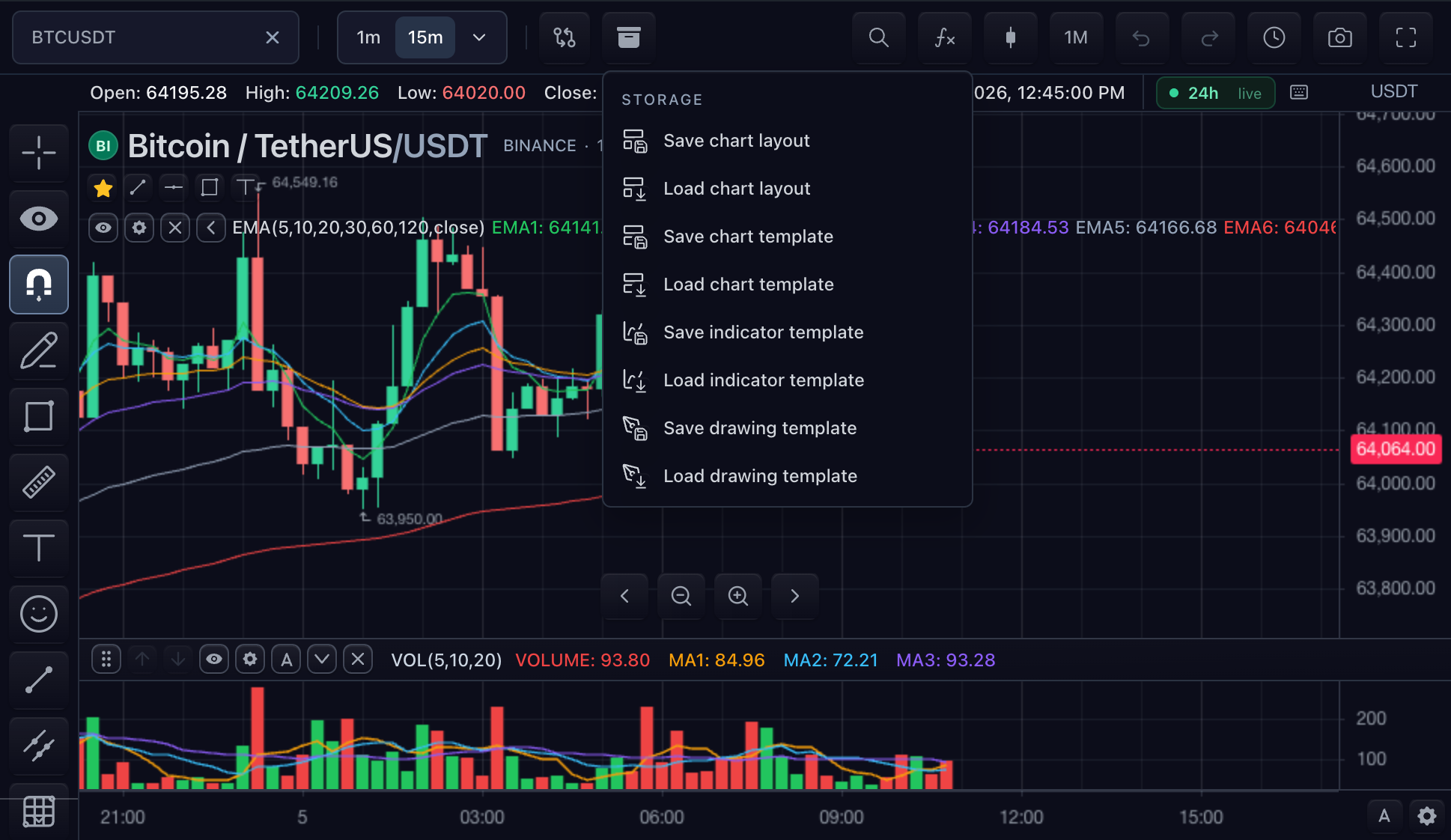
The built-in storage menu exposes chart layout and template actions supported by the active adapter. Separate drawing actions appear only when drawing persistence uses separate records or explicitly opts into the toolbar.
This menu belongs to ChartStorageAdapter. Widget panel arrangements use
WidgetLayoutStorageAdapter and save through onLayoutChange; they never add a
row to the chart storage menu. See Widget layout storage.
Capability comes first
const capabilities = widget.chart().getStorageCapabilities();
The result reports method availability for chart layouts, drawings, templates, user settings, and replay. The UI derives its defaults from this map. A feature flag can hide a supported action, but it cannot make an absent adapter method work.
The default browser-local adapter supports every object family except pushed
drawing subscriptions. This is why the storage button works without a custom
storage option.
Choose one chart layout surface
Without workspace tabs, features.layoutStorage controls Save chart layout and
Load chart layout in the storage menu:
import type { ChartFeatures } from '@tradescript/pro/sdk';

export const features = {
  layoutStorage: {
    enabled: true,
    toolbar: true,
    save: true,
    load: true,
    delete: true,
    confirmOverwrite: true,
  },
} satisfies ChartFeatures;
Enable features.workspaceTabs when named chart layouts should appear as a tab
strip. The tab strip then owns create, open, save, duplicate, rename, reorder,
close, and delete. Chart layout actions are removed from the storage menu so the
product has one authority for chart layout actions.
Workspace tabs require chart layout list/load/save/delete plus user-setting load/save. User settings retain tab order, the active tab, and logical-to-storage id mappings across reloads.
Configure drawing rows
features: {
  drawings: {
    persistenceMode: 'separate',
    storageToolbar: true,
  },
}
storageToolbar defaults to visible only for separate and both modes when
the adapter implements drawing save and load. Set it to false to keep the API
without showing Save drawings and Load drawings.
In embedded mode, drawings travel with chart layouts and separate drawing rows
stay hidden. Setting storageToolbar: true overrides that presentation, but it
does not change drawing ownership; choose the persistence mode deliberately.
Configure template rows
All template kinds are visible by default when the adapter implements the full template lifecycle. Narrow them independently:
features: {
  templates: {
    toolbar: true,
    chart: true,
    indicator: true,
    drawing: false,
    importExport: true,
  },
}
Drawing-template UI is also unavailable when drawings are disabled. Import and export are host-side JSON actions; they do not add storage capabilities.
Automatic surfaces live elsewhere
User-setting persistence and replay persistence do not add rows to this menu:
features.userSettingscontrols load-before-ready and autosave through the user-setting methods.features.replay.persistencecontrols save and load through the replay controller and replay UI.loadLastChartperforms a one-shot startup chart layout restore after chart controllers exist.
Keep their feature settings aligned with adapter support, and expose manual host controls only after checking capabilities.
Verify responsive behavior
- Open the menu at the narrowest supported chart width and confirm every action remains readable and reachable by keyboard.
- Enable workspace tabs and confirm chart layout rows disappear from the menu.
- Remove one adapter method at a time and confirm the related action or surface becomes unavailable.
- Apply read-only drawing permissions and confirm save is disabled while load remains usable.
- Close the menu with Escape, return focus to the storage button, and destroy the chart with no retained dialog or listener.
Next steps
- Persisted state — choose the object behind each UI action.
- Chart workspace layouts — implement chart layout identity and workspace tabs.
- Widget layout storage — persist the outer widget panel arrangement independently from this menu.
- Test chart storage — verify UI and adapter behavior together.