Storage quickstart
TradeScript exposes two independent storage boundaries:
| Boundary | Contract | What it owns |
|---|---|---|
| Chart storage | ChartStorageAdapter | Chart layouts and the separate drawing, template, user-setting, and replay-state objects used by charts |
| Widget layout storage | WidgetLayoutStorageAdapter | The outer widget panel arrangement of charts, order tickets, watchlists, and other panels |
This quickstart establishes chart storage with a chart layout first. If you omit
storage, the chart uses a default browser-local ChartStorageAdapter. This
enables local chart layout save and load actions, but does not persist widget
panel arrangements or automatically restore the last chart. When chart state
must follow an authenticated user across browsers or devices, pass the built-in
chart REST adapter or your own ChartStorageAdapter.
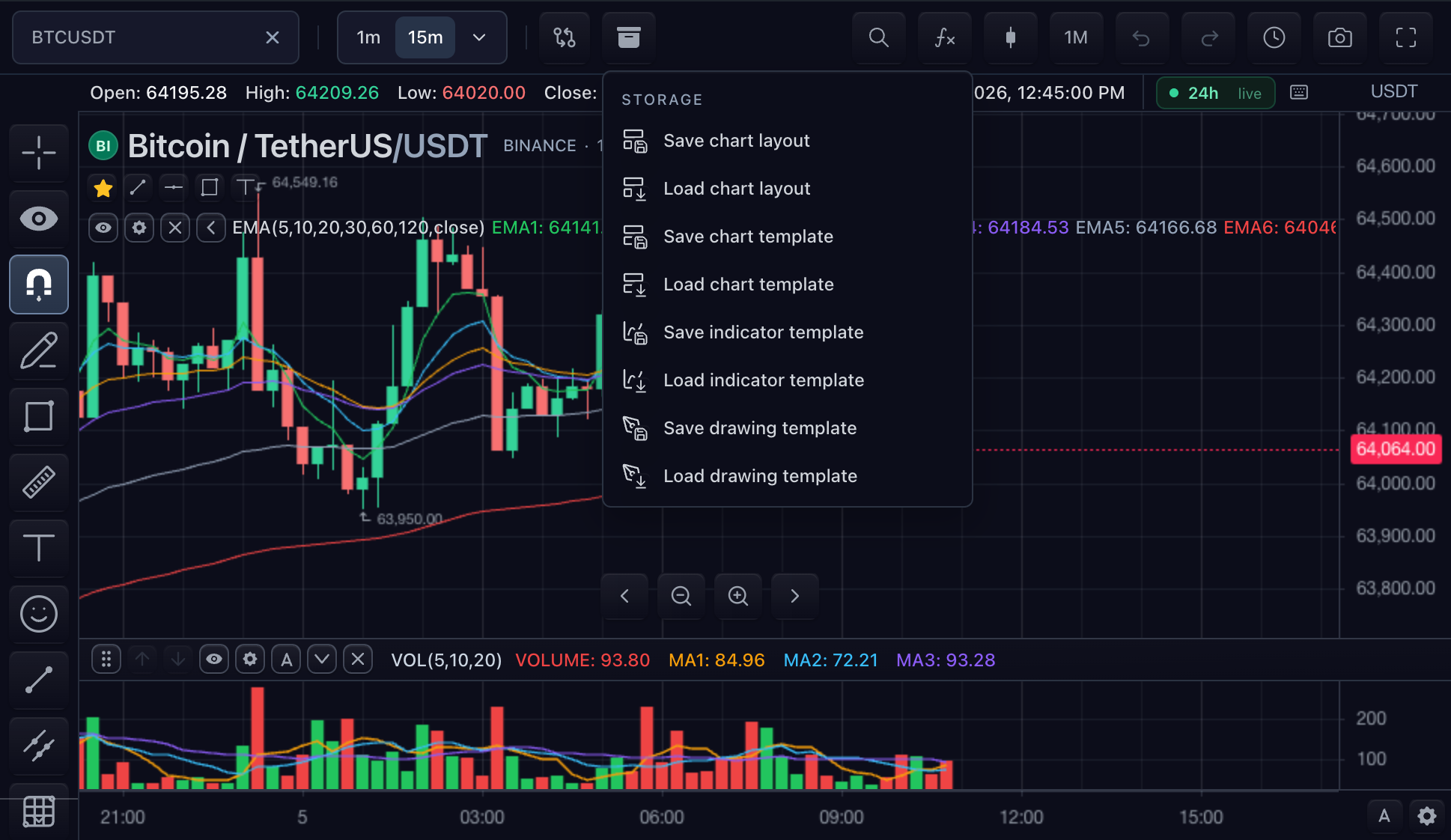
Chart workspace layouts provide the smallest visible end-to-end integration:
save the current workspace, list it, load it, and delete it. Add widget layout
storage only when the product also needs to restore a composed Trading Terminal
or WidgetLayoutContainer.
Have a deployment lease and a working MarketDataFeed ready.
Step 2 mounts the chart into a #chart element with a real height. See the
general chart Quickstart for installation and
SDK setup.
How chart storage talks to your backend
The SDK captures and applies public JSON objects. The adapter owns transport; your backend owns authentication, authorization, tenant routing, and durable records.
Use null for a record that does not exist. Reject authentication, permission,
transport, and invalid-payload failures so the chart does not mistake them for
a missing record.
1. Create the chart REST adapter
The built-in adapter maps the storage contract onto the documented REST endpoints. Resolve authentication headers for every request:
import { createRestChartStorageAdapter } from '@tradescript/pro/sdk';

declare const currentUser: { id: string };
declare const currentWorkspace: { id: string };
declare function getAccessToken(): Promise<string>;

export const storage = createRestChartStorageAdapter({
  baseUrl: 'https://api.example.com/chart-storage',
  apiVersion: 'v1',
  clientId: 'pro-terminal',
  userId: currentUser.id,
  workspaceId: currentWorkspace.id,
  headers: async () => ({
    Authorization: `Bearer ${await getAccessToken()}`,
  }),
});
Use a custom ChartStorageAdapter instead when your backend exposes different
routes or transports, or when it must push drawing updates. The built-in REST
adapter covers chart layouts, drawings and permissions, templates, user
settings, and replay state. Backend integration
compares both paths.
Verify before continuing:
- The adapter is created without making a request.
- A request resolves a fresh access token through
headers(). - Your backend derives the authenticated user and allowed workspace from that token; query-string identifiers are routing context, not authorization.
2. Attach storage to a chart
Passing storage replaces the default browser-local adapter for this widget:
import {
  createTradeScriptSdk,
  type MarketDataFeed,
  type SdkSymbolInfo,
} from '@tradescript/pro/sdk/core';
import type { ChartStorageAdapter } from '@tradescript/pro/sdk';

declare const datafeed: MarketDataFeed;
declare const deploymentLease: string;
declare const storage: ChartStorageAdapter; // The adapter from step 1.

export const symbol: SdkSymbolInfo = {
  ticker: 'AAPL',
  exchange: 'NASDAQ',
  type: 'stock',
};

export const sdk = await createTradeScriptSdk({ lease: deploymentLease });
export const mounted = sdk.chart.mount({
  mount: '#chart',
  symbol,
  interval: '1D',
  datafeed,
  storage,
});

export const widget = await mounted.ready();
export const layouts = widget.chartLayouts();
Storage capability and UI visibility are separate. Adapter methods determine
which operations exist; top-level features settings may hide or narrow their
UI, but cannot add a missing operation.
Verify before continuing:
- The chart reaches
ready()when no chart layouts have been saved yet. - The storage button exposes the chart layout actions supported by the adapter.
- An expired token or denied request is surfaced as an error, not as an empty chart layout list.
3. Save, list, load, and delete one chart layout
Use the widget-owned chart layout controller for both single-chart and multi-chart workspaces:
import type { ChartWorkspaceLayoutControllerApi } from '@tradescript/pro/sdk';

declare const layouts: ChartWorkspaceLayoutControllerApi;

const saved = await layouts.saveAs('opening-drive', 'Opening drive');
console.log(saved.layoutId);  // 'opening-drive'
console.log(saved.storageId); // Backend-assigned record id

const summaries = await layouts.list();
const summary = summaries.find((item) => item.id === 'opening-drive');

const restored = await layouts.load('opening-drive');
if (!restored) {
  throw new Error('The saved chart layout was not found');
}

await layouts.delete('opening-drive');
layoutId is the SDK-side identity. storageId is the backend record identity
returned when a chart layout is created; the controller retains the mapping so
later saves update the same record in that session. If the two ids differ,
persist layouts.getStorageIds() and call layouts.restoreStorageIds(...)
before direct loads or updates in a later session. features.workspaceTabs
does this through user settings when its required storage methods are present.
Verify before continuing:
saveAsreturns both identities and your backend receives one create.list()includes the saved name and logical id.- After changing the chart,
load()restores the saved symbol, interval, indicators, display settings, grid, and embedded drawings. - A later
save('opening-drive')updates the existingstorageIdinstead of creating a duplicate. - After
delete(), the chart layout no longer appears inlist().
For multi-chart workspaces, mount the same stable chart ids before loading. Chart-layout restore applies saved entries to matching controllers; it does not create a chart controller that the host did not mount.
4. Add only the state your product needs
Every ChartStorageAdapter method is optional. Implement one complete chart
object family at a time, and use the separate WidgetLayoutStorageAdapter for
widget panel arrangements:
| Product need | Storage contract | Operations | Guide |
|---|---|---|---|
| Named chart workspaces across devices | ChartStorageAdapter | listLayouts, saveLayout, loadLayout, deleteLayout | Chart workspace layouts |
| Composed terminal or widget panel arrangement | WidgetLayoutStorageAdapter | load, save, delete | Widget layout storage |
| Drawings with separate records, sharing, or conflicts | ChartStorageAdapter | saveDrawings, loadDrawings; optionally permissions and subscriptions | Drawing storage |
| Reusable chart, indicator, or drawing presets | ChartStorageAdapter | listTemplates, saveTemplate, loadTemplate, deleteTemplate | Templates |
| Per-user preferences across chart layouts | ChartStorageAdapter | loadUserSettings, saveUserSettings, deleteUserSettings | User settings |
| Persisted bar-replay position | ChartStorageAdapter | loadReplayState, saveReplayState on the local, built-in REST, or custom adapter | Replay state |
Chart layouts embed drawings by default. Choose separate drawing storage only when drawings require their own identity, sharing scope, revision, or conflict handling. Templates are reusable presets; user settings survive switching chart layouts; replay state is a separate controller snapshot.
ChartLayout is the state inside a chart workspace. WidgetLayoutState is the
widget panel arrangement around those charts. Persist the widget panel
arrangement through WidgetLayoutStorageAdapter, never as chart layout
metadata. Keyboard shortcuts use a third, separate HotkeyStorageAdapter
contract.
Production concerns
Identity and tenant isolation
Keep user, workspace, chart layout, drawing-bucket, and template identities
stable. Authorize every operation on the backend; never trust a browser-supplied
userId or workspaceId by itself.
Missing data and failures
Return null only when a requested object does not exist. Keep missing data,
permission denial, revision conflict, malformed payloads, and transport failure
observable as different outcomes.
JSON and versioning
Persist documented public JSON objects only. Do not store DOM nodes, canvas
instances, React components, or live chart/controller objects. Version the HTTP
contract independently from the version carried by stored payloads.
Next steps
- Backend integration — choose the REST or custom-adapter production path and establish backend ownership.
- Chart workspace layouts — workspace contents, create/update identity, tabs, and low-level APIs.
- Widget layout storage — persist a
WidgetLayoutContaineror Trading Terminal panel arrangement through its own REST adapter. - Drawing storage — embedded versus separate persistence, sharing buckets, and conflicts.
- Templates — reusable chart, indicator, and drawing presets.
- User settings — per-user values loaded before chart readiness.
- Storage UI — capability-driven menus and chart layout tabs.