Local MCP Quickstart
One MCP client connects to the TradeScript surfaces already mounted in your browser application. Once connected, it can discover the session, list its authorized controls, and read chart context.
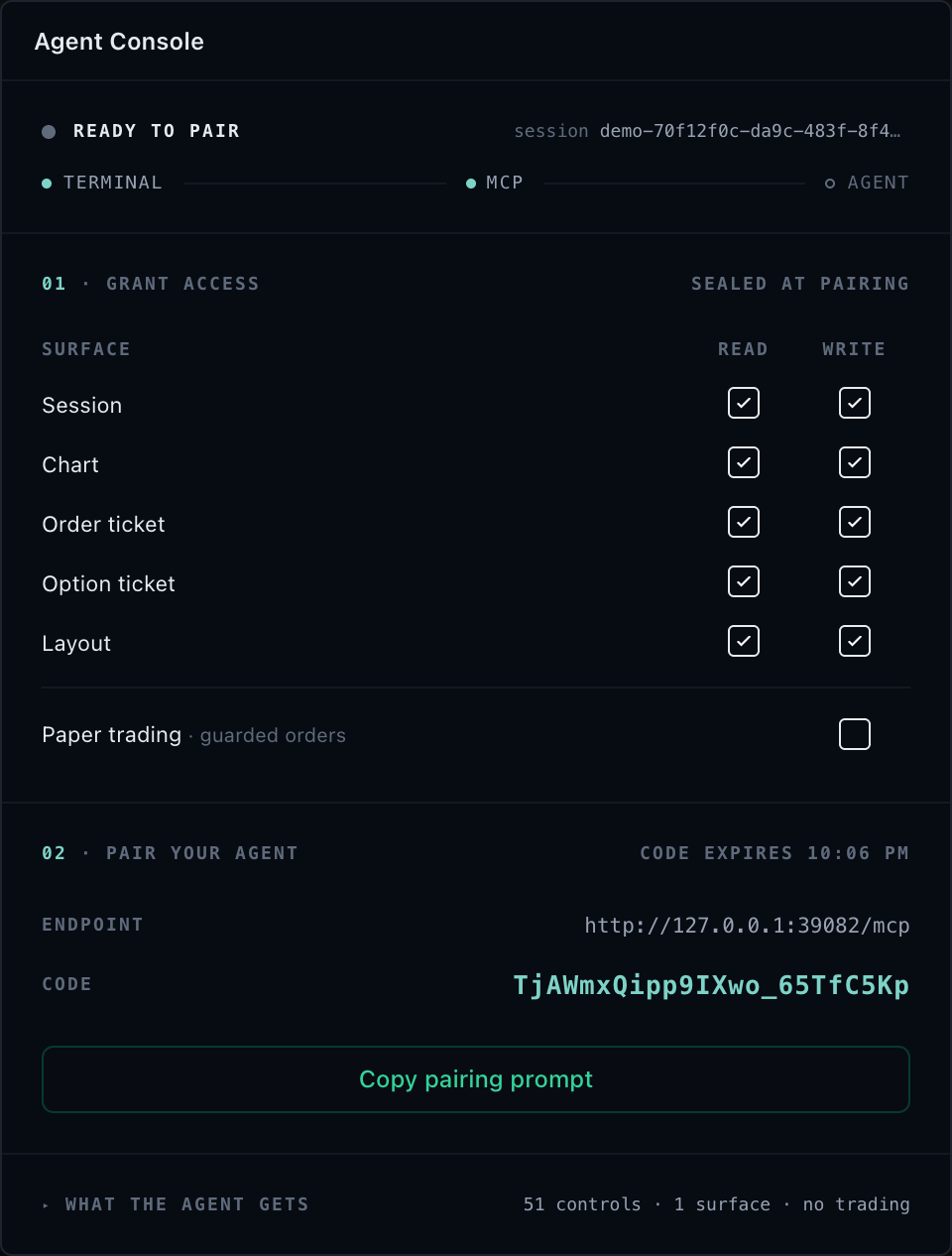
Before you start
You need:
- Node.js 20 or newer for the local MCP process
- a browser application with its deployment-specific SDK installed as
@tradescript/prothrough Package access - access to
@tradescript/chart-mcpunder your TradeScript agreement - an MCP client that can start a local stdio server
Decide the maximum access the application will permit before pairing. Read-only chart inspection, chart changes, and simulated broker actions are separate grants. Start read-only and add the smallest write or paper-trade scope the workflow requires.
If the client is a compatible AI browser, use WebMCP after the package installation and browser attachment steps. That path needs no local Node process or WebSocket bridge. Continue below for a desktop or IDE client that starts a standard MCP server.
1. Install the MCP package
After completing SDK package access, install the MCP package in the project from which the MCP client will start the local process:
npm install @tradescript/chart-mcp
2. Start the local MCP process
npx tradescript-chart-mcp stdio
The process writes its browser bridge URL and pairing token to standard error:
[chart-mcp] browser bridge: ws://127.0.0.1:39081/chart-mcp
[chart-mcp] pairing token: <generated-token>
Standard output is reserved for MCP protocol messages. Do not copy the pairing token into application logs, screenshots, source control, or a shell argument that will be retained in history.
3. Attach the browser session
Attach after the charts and widgets intended for the session have mounted:
import { attachTradeScriptSession } from '@tradescript/chart-mcp/browser';

const attachment = attachTradeScriptSession(tradeScriptAdapter.agentic, {
  sessionId: crypto.randomUUID(),
  title: 'Research terminal',
  access: {
    read: true,
    write: {
      families: {
        chartNavigation: true,
        drawings: true,
        indicators: true,
      },
    },
    trade: false,
  },
});

await attachment.connectWebSocket({
  url: 'ws://127.0.0.1:39081/chart-mcp',
  token: pairingToken,
});
The attachment can narrow the access allowed by the SDK adapter; it cannot add a controller, data capability, broker action, or permission that the host did not provide.
4. Configure the MCP client
Use the equivalent of this local-server configuration:
{
  "mcpServers": {
    "tradescript-chart": {
      "command": "npx",
      "args": ["tradescript-chart-mcp", "stdio"]
    }
  }
}
If the MCP client runs from another working directory, configure an executable path that resolves the package installed in step 1.
5. Verify the connection
From the MCP client:
- Read
tradescript://sessionsand confirm that it lists the new opaque session ID. - Call
tradescript_get_contextwith{ "scope": "session" }and confirm that the intended chart or terminal targets appear. - Call
tradescript_list_controlsfor one target and confirm that only the approved controls are effective. - Make one read-only call and compare the result with the visible chart.
- If write access is enabled, make one reversible chart change and verify both controller state and the rendered result.
The connection is not proven by a running process alone. Session discovery, target discovery, effective control discovery, and visible result must all agree.
Cleanup and revocation
Keep the returned attachment for the lifetime of the paired browser session:
attachment.detach();
Detach when the user revokes access, signs out, or destroys the mounted product surfaces. Recreate the attachment to apply a different access policy.
Local and customer-hosted deployment
The loopback WebSocket bridge is for a local MCP client on the same machine. Do
not expose it on a public interface. For a shared or remote deployment, run the
@tradescript/chart-mcp gateway in infrastructure you control and provide your
own identity, authorization, tenant isolation, origin allowlists, session
store, rate limits, and audit destination. Changing the local bind address does
not turn the local bridge into a production gateway.
See Customer-hosted deployment for the Node, container, and Kubernetes paths.
Troubleshooting
| Problem | First check |
|---|---|
| The MCP process does not start | Node.js is version 20 or newer and the package is installed in the configured working directory. |
| The sessions resource is empty | The browser attached after its surfaces mounted and used the token printed by the same MCP process. |
| A target is missing | The surface was mounted before attachment and has not since been destroyed or replaced. |
| A control is unavailable | The controller supports it and both the adapter and attachment policies allow it. |
| A paper-trade action is denied | The simulated broker environment, operation support, host risk policy, and explicit paper-trade grant all agree. |
Next steps
- Pair a TradeScript Session — attach the SDK agentic adapter and bind it to the browser bridge.
- Customer-hosted deployment — deploy the gateway on your own domain and infrastructure.
- MCP Security and Access — set the host maximum before granting write or trade authority.
- MCP Troubleshooting — diagnose a server that will not start or a session that never appears.