Configure an MCP Client
Local stdio
Desktop clients can start the licensed binary and use its loopback browser bridge:
{
  "mcpServers": {
    "tradescript-chart": {
      "command": "tradescript-chart-mcp",
      "args": ["stdio"]
    }
  }
}
Keep the bridge on 127.0.0.1 or ::1. Do not publish it through a tunnel or
public interface.
Customer-hosted HTTP MCP
Configure the HTTPS URL and authentication supported by the customer's MCP client and identity platform:
{
  "mcpServers": {
    "tradescript-chart": {
      "type": "http",
      "url": "https://agents.customer.example/mcp"
    }
  }
}
The customer deploys and operates that URL. The repository's public connector material contains a placeholder and must be configured before installation.
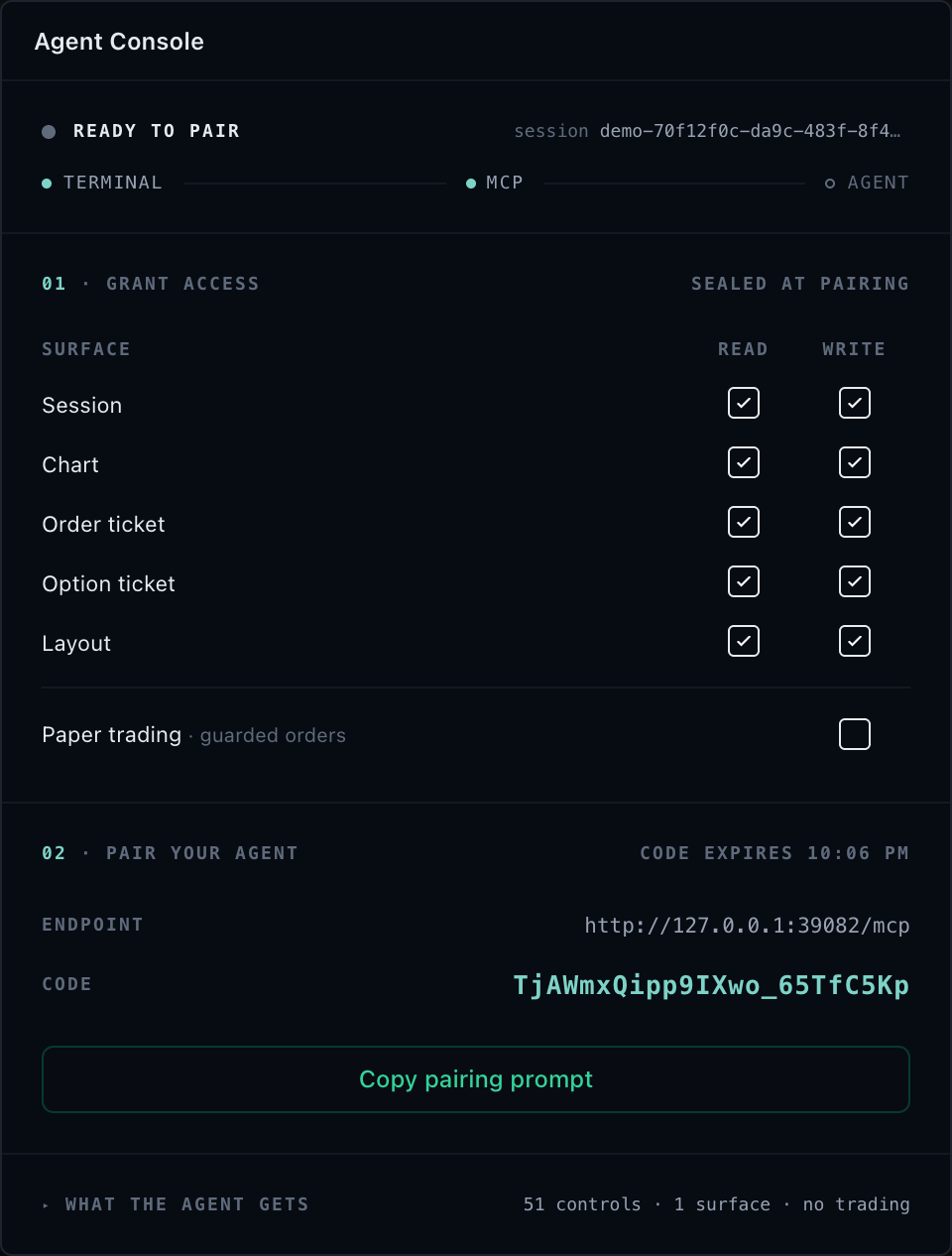
After the connector loads, call tradescript_pair_session once with the
short-lived code displayed by the customer's Agent Console. Discover and use
only the returned session.
WebMCP
WebMCP needs no client server entry. The top-level page registers six tools against its own attached session. Browser support and agent identity belong to the browser product; TradeScript supplies the page-bound tool implementation.
For failures, diagnose in order: client transport, customer authentication, session issue, browser bridge, pairing, exact target, effective control, SDK call, then rendered evidence. Never repair a missing upstream fact in a prompt.
Next steps
- Install the MCP package for a loopback or customer-hosted runtime.
- Pair a session and discover only the session returned by the pairing tool.
- Troubleshoot the MCP layer with exact transport, policy, and unavailable reasons.